Why Managing Your Google Maps Listing Can Make or Break Your Local Business
Manage your Google Maps listing by claiming your free Google Business Profile, verifying your business, and keeping your information accurate, complete, and up to date.
Here’s a quick overview of the core steps:
- Claim or create your Business Profile at business.google.com
- Verify your business via postcard, phone, email, or Google Search Console
- Complete every section — name, address, hours, phone, website, photos, and categories
- Engage — respond to reviews, answer questions, and post updates regularly
- Monitor your profile insights to track calls, direction requests, and search keywords
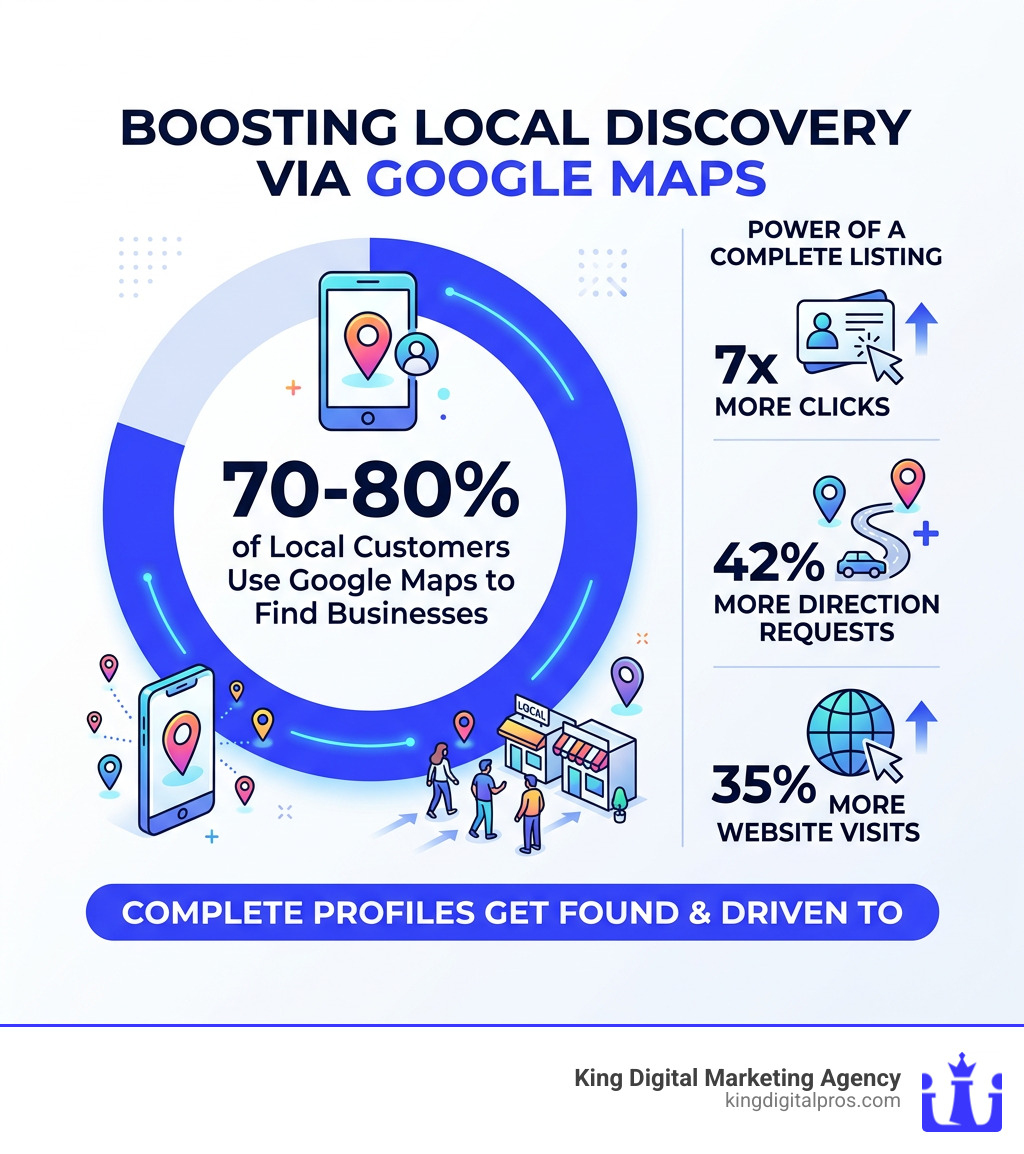
Think about this: 70–80% of local customers use Google Maps to discover and visit nearby businesses. If your listing is incomplete, inaccurate, or unclaimed, those customers are finding your competitors instead of you.
And the gap between a complete and an incomplete listing is enormous. Businesses with fully filled-out profiles receive 7 times more clicks than those without. Listings with photos alone generate 42% more requests for directions and 35% more website visits.
This isn’t a minor edge. It’s the difference between a phone that rings and one that doesn’t.
Yet for many local business owners, the process feels confusing. Listings show wrong hours. Addresses are outdated. Reviews go unanswered. Sometimes a listing exists that the owner never even created — and has no idea how to take control of.
This guide cuts through all of that.
I’m Bernadette King, founder of King Digital Marketing Agency, where I’ve spent years helping franchise owners and small businesses dominate local search by building and optimizing their Google presence — including helping clients manage their Google Maps listing from scratch or rescue profiles that were lost, suspended, or incomplete. Let’s walk through everything you need to know, step by step.
The Essentials to Manage Google Maps Listing Effectively
To manage google maps listing results properly, we first need to talk about the tool itself: the Google Business Profile (GBP). This is the “back end” dashboard that feeds information to Google Maps and local search results. It is essentially your digital storefront.
Before we dive into the “how-to,” we need to ensure your business is actually eligible. Google is quite strict here. To have a profile, you must have face-to-face interaction with customers. This means:
- Storefront Businesses: You have a physical location (like a coffee shop in Albuquerque or a retail store in Santa Fe) where customers visit you.
- Service-Area Businesses (SABs): You visit your customers at their locations (like a plumber in Rio Rancho or a landscaper in Corrales).
Online-only businesses, vacation rentals, or properties for sale are not eligible for a Business Profile. If you fall into those categories, Google Ads is your better bet. For everyone else, following Your Google Maps Optimization Playbook is the first step toward local dominance. You can also Watch Story Get Listed on Google for a visual overview of how these profiles help businesses stand out.
How to Add or Claim Your Business
If your business is new, you’ll need to create a listing. If it’s been around for a while, Google might have already created a “placeholder” listing based on web data. Your job is to take ownership.
- Visit business.google.com/add.
- Type in your business name. If it appears in the drop-down, it already exists, and you can “Claim this business.”
- If it doesn’t appear, select “Add your business to Google.”
- Follow the prompts to enter your category and location.
If you find that someone else has already verified your business, don’t panic. You can request ownership through the interface. Google will email the current “owner” and give them a window to respond. If you’re feeling stuck during this initial setup, our Google Business Listing Help guide can walk you through the trickier technical hurdles.
Step-by-Step: How to Manage Google Maps Listing Verification
Verification is Google’s way of proving you are who you say you are. Without it, you cannot respond to reviews or see your performance data.
The most common methods include:
- Postcard: Google mails a physical card to your business address. It usually arrives within 14 days. Once it arrives, you enter the 5-digit code into your dashboard.
- Phone or Email: Some businesses are eligible for instant verification via a text code or email.
- Search Console: If you’ve already verified your website through Google Search Console, you might be granted “Instant Verification.”
It is vital that you do not change your business name or category while waiting for your postcard, as this can void the code and force you to start over. For a deeper look at this process, check out our resource on Google My Business Verification.
Optimizing Your Profile for Maximum Local Reach
Once verified, the real work begins. We often see businesses stop after verification, but that’s like buying a billboard and leaving it blank. To truly manage google maps listing visibility, you must optimize.
The foundation of local SEO is NAP consistency (Name, Address, Phone number). This information must match exactly across your website, your social media, and your Google profile. If your website says “Street” and Google says “St,” it’s usually fine, but if the phone numbers are different, Google gets confused—and a confused Google doesn’t rank you well.
Research shows that almost 70% of users view businesses with complete listings as more reputable and well-established. This includes writing a compelling business description. You have 750 characters—use them to highlight what makes you unique, but avoid “salesy” language or stuffing it with too many keywords. Mention your service areas, like Tijeras or Sandia Park, naturally within the text.
Managing Essential Business Information
Your profile should be a living document. Beyond the basics, you need to manage:
- Operating Hours: Keep these updated! There is nothing more frustrating for a customer than driving to a shop in Los Alamos only to find it closed when Google said it was open.
- Holiday Hours: Google will prompt you to confirm hours for upcoming holidays. Always fill this out so your listing shows “Holiday hours confirmed.”
- Website URL: Ensure this links to a fast-loading, mobile-friendly page.
You can actually Manage your Business Profile directly on Google Search or Maps now, making it easier than ever to tweak these details on the fly.
Utilizing Business Attributes and Visuals
Attributes are small tags that tell customers more about your vibe or offerings. There are two types:
- Factual Attributes: Things you can control, like “Wheelchair accessible,” “Free Wi-Fi,” or “Veteran-owned.”
- Subjective Attributes: Things Google gathers from customer surveys, like “Popular for lunch” or “Cozy.”
Visuals are even more impactful. We recommend uploading 30–50 high-quality photos. This shouldn’t just be your logo; include shots of the exterior (to help people find you), the interior, your team in action, and before-and-after shots if you’re in a service industry like cleaning or remodeling. According to Google, listings with photos receive 42% more requests for directions.
Engagement, Reviews, and User Roles
Managing a listing isn’t just about data entry; it’s about community management. You also need to decide who on your team has access.
Owner vs. Manager Permissions
| Feature | Primary Owner | Owner | Manager |
|---|---|---|---|
| Edit Business Info | Yes | Yes | Yes |
| Respond to Reviews | Yes | Yes | Yes |
| Add/Remove Users | Yes | Yes | No |
| Delete Profile | Yes | No | No |
| Transfer Ownership | Yes | No | No |
Note: New owners or managers face a 7-day waiting period before they can manage users or delete profiles.
Handling Customer Interaction and Reviews
Reviews are the lifeblood of local search. They provide social proof and act as a major ranking signal for Google. We suggest creating a custom review link (found in your GBP dashboard) and sending it to happy customers in Edgewood or Cedar Crest via email or text.
When a review comes in—good or bad—respond to it. A professional response to a negative review can actually build more trust than a sea of perfect 5-star ratings. It shows you care. For those who find this overwhelming, we offer reputation management services to handle the heavy lifting for you.
Managing Service Areas and Hidden Addresses
If you run a business out of your home in Sandia Park but serve the entire Albuquerque area, you shouldn’t show your home address. In your settings, you can “Hide” your physical address and instead define a Service Area. You can list specific cities, zip codes, or a radius. This ensures you show up for searches in the areas you actually serve without having strangers show up at your front door.
Advanced Management and Troubleshooting
Sometimes, Google takes matters into its own hands. You might see blue text in your dashboard—these are “Google Updates.” Google uses AI, user suggestions, and third-party data to suggest changes to your profile. You must review these regularly to ensure Google hasn’t accidentally changed your hours or services incorrectly. You can learn more about Google updates here.
Moving Locations and Address Changes
Moving your business is a “high-risk” activity in Google’s eyes. To manage google maps listing changes during a move without getting suspended:
- Update your website and social media first.
- Gather a utility bill or lease with the new address.
- Change the address in your GBP dashboard.
- Be prepared for a re-verification (usually another postcard). Avoid changing your business name or phone number at the same time, as multiple major changes can trigger an automatic suspension.
Using Insights to Manage Google Maps Listing Performance
Google provides a wealth of data under the “Insights” or “Performance” tab. You can see:
- Search Keywords: What terms people typed in to find you.
- Calls: How many people clicked the “Call” button.
- Messages: Direct chats from customers.
- Direction Requests: Where people are driving from when they look for you.
Monitoring these metrics helps you understand if your marketing is working. If you manage multiple locations (e.g., shops in both Taos and Grants), Google provides bulk management tools to update all of them at once.
Leveraging Additional Features for SEO
Don’t ignore the “extra” features. They are free real estate on the search results page!
- Google Posts: Think of these as mini-social media updates. Use them to announce sales, events, or new blog posts. They expire after a while, so keep them fresh.
- Product Catalogs: If you sell physical goods, you can list them directly on your profile.
- Q&A Section: Customers can ask questions here. Pro tip: You can also post your own frequently asked questions and answer them yourself to provide immediate value.
Frequently Asked Questions about Google Maps Listings
Is a Google Business Profile really free?
Yes! Creating, claiming, and managing your profile costs nothing. While there are third-party tools that charge for automated posting or review management, the core platform provided by Google is free.
What are the most common mistakes to avoid?
- Keyword Stuffing: Don’t add “Best Plumber Albuquerque” to your business name if it’s not your legal name. Google will suspend you.
- Outdated Info: Leaving holiday hours unconfirmed or having a dead website link.
- Ignoring Reviews: Especially the negative ones.
- Stock Photos: Users want to see your business, not a generic office photo.
How do I fix a suspended or denied listing?
Suspensions usually happen due to “Quality Issues” (like a name that doesn’t match your signage) or “Policy Violations.” To fix it, you must first correct the error on your profile, then submit a “Reinstatement Request” along with proof of business (like a business license or utility bill).
Conclusion
Mastering the ability to manage google maps listing data is the most cost-effective way to grow a local business today. It’s not just about being “on the map”; it’s about being the most prominent, trusted, and active choice for your neighbors in Santa Fe, Los Alamos, and beyond.
Consistent updates, high-quality photos, and genuine engagement with reviews will put you miles ahead of the competition. If you’re ready to take your local visibility to the next level but want an expert hand to guide the way, King Digital Marketing Agency is here to help. Start your journey with expert reputation management and let’s put your business at the top of the map.
